The commands that move a table from the Hive metastore into Unity Catalog take seconds. The work around them takes months: finding out who uses each table, agreeing who owns it, untangling mount points every notebook depends on, and persuading teams to change jobs before they break. I’ve led Unity Catalog adoption on large Azure Databricks Medallion lakehouse programmes, and the technical steps were rarely what held us up.
So this isn’t a feature tour. It’s the runbook I use for a hive metastore to Unity Catalog migration: five phases (assess, design, migrate, cut over, decommission), the SQL I reach for and, more importantly, the people and permission work no tool does for you. If you’re new to Unity Catalog itself, my Unity Catalog governance tips are a good primer.
Product behaviour described here reflects Databricks documentation (docs.databricks.com and Microsoft Learn for Azure Databricks) as of October 2026. Databricks moves quickly, so check the linked docs before relying on any detail.
The five phases at a glance
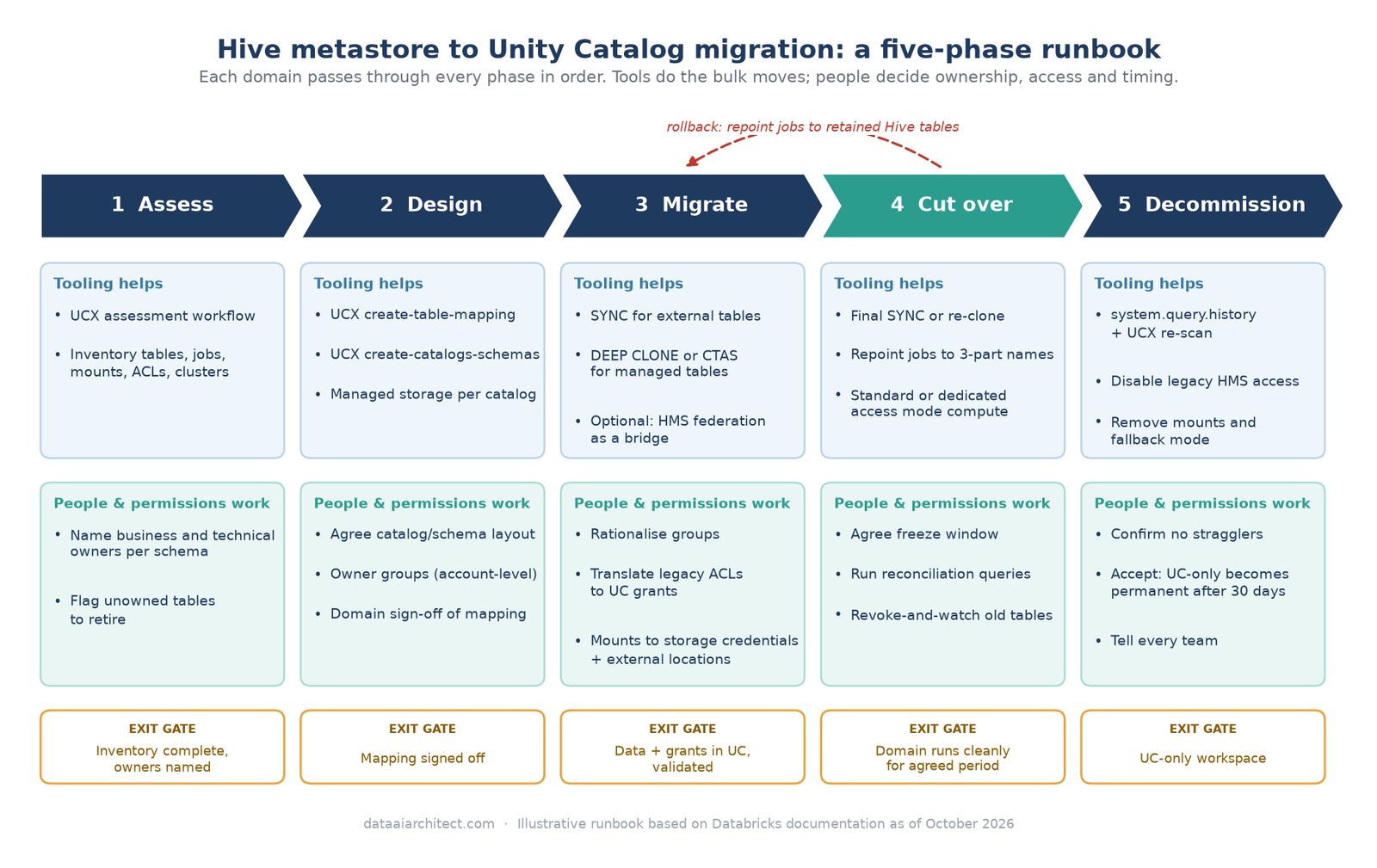
In practice the phases overlap across domains, but each domain should pass through every phase in order. Don’t skip design because “we can rename it later”: renaming means touching every job, dashboard and grant that uses the old name.
Phase 1: Assess the estate
I inventory five things:
- Tables and views. Managed or external, format (Delta, Parquet, CSV, Hive SerDe), and whether the data sits in the workspace’s DBFS root or in your own storage. This decides your migration method.
- Jobs and notebooks. Which ones reference
hive_metastore, mount paths (/mnt/...) ordbfs:/paths. - Mounts. Every mount point, the storage account behind it and the credential it uses. Mounts work by storing a location and a credential under
/mnt, and the Databricks docs warn that all users in the workspace have access to a mounted ADLS account. - Permissions. Legacy table ACLs, workspace-local groups and who holds what.
- Clusters. Access modes, Databricks Runtime versions, init scripts and any credentials baked into Spark configuration.
Don’t do this by hand. UCX, the Databricks Labs migration toolkit, has an assessment workflow that inventories group identities, storage locations, credentials, access controls and tables, with a dashboard on top. Caveats: it’s a Labs project without formal Databricks support SLAs, and installing it needs account admin and workspace admin rights.
What UCX can’t do is the human side. For every schema I want a named business owner and technical owner. If nobody will put their name against a table, it’s usually a candidate for retirement rather than migration, and finding that out early is the cheapest saving in the programme.
Phase 2: Design the target layout before moving any data
Unity Catalog’s namespace is catalog.schema.table; the Hive metastore effectively had two levels. I settle three questions before migrating a single table:
- What does a catalog represent? My usual default is catalog per environment and domain, with schemas for Medallion layers, for example
sales_prod.silver.orders. Catalog per layer also works; switching halfway doesn’t. My Medallion architecture design tips cover the layer conventions I use. - Where does managed storage live? Decide each catalog’s storage location up front.
- Who owns what? Ownership goes to account-level groups, never individuals. Databricks generally recommends granting table ownership to groups.
The result is a mapping sheet: one row per source table with target catalog, schema, name, type (managed or external) and owner group. UCX generates this as a CSV with create-table-mapping, for you to edit before running its table migration workflow. Treat it as the migration contract and get each domain owner to sign off their rows.
Phase 3: Migrate the data
Managed or external?
Databricks describes managed tables as the preferred way to create tables in Unity Catalog: Unity Catalog manages their lifecycle, layout and storage, and optimises them automatically. External tables make sense when non-Databricks engines need direct access to the files, and they’re convenient during migration because you can register existing data without copying it.
My rule of thumb: land quickly as external where you can, then convert high-value tables to managed once the dust settles.
SYNC vs DEEP CLONE vs CTAS or re-ingest
| Method | Creates in UC | Works for | Copies data? | Watch out for |
|---|---|---|---|---|
SYNC (or the Catalog Explorer upgrade wizard) |
External tables | External tables, and managed tables stored outside DBFS root (AS EXTERNAL) |
No | Not for managed tables in DBFS root; adds a property to the source table |
CREATE TABLE ... DEEP CLONE |
Managed tables | Managed Delta tables | Yes | Delta history isn’t migrated, so no time travel to pre-migration versions |
| CTAS | Managed tables | Anything you can query | Yes | You re-specify partitioning and other metadata |
| Re-ingest from source | Either | Messy or tiny tables | Yes | Only sensible if the source still holds full history |
SYNC is designed to run repeatedly, which makes it useful for a hybrid period while some workloads still write to the Hive table. Always start with a dry run:
-- Check which tables in a schema can be upgraded, without changing anything
SYNC SCHEMA sales_prod.bronze FROM hive_metastore.sales_raw DRY RUN;

-- Upgrade external tables (and managed tables stored outside DBFS root) as UC external tables
SYNC SCHEMA sales_prod.bronze AS EXTERNAL FROM hive_metastore.sales_raw
  SET OWNER `grp-sales-data-owners`;

-- Managed Delta tables in DBFS root: deep clone into UC managed storage
CREATE OR REPLACE TABLE sales_prod.silver.orders
  DEEP CLONE hive_metastore.sales.orders;
The SYNC output includes a status code per table. Codes such as DBFS_ROOT_LOCATION, HIVE_SERDE and LOCATION_OVERLAP tell you exactly which tables need a different route, so I paste that output straight into the mapping sheet.
If your estate is large or your teams can’t all move at once, also look at Hive metastore federation. It creates a foreign catalog in Unity Catalog that mirrors the Hive metastore, so workloads get Unity Catalog governance without code changes. For the workspace’s own internal Hive metastore it supports reads and writes. I treat it as a bridge, not a destination: some Unity Catalog features, such as predictive optimisation, aren’t available on foreign tables.
Phase 4: Translate permissions and storage access
This is the phase that tools only half-do, and where most of the people work sits.
Groups first
Unity Catalog grants go to account-level groups. UCX’s group migration workflow replicates permissions from workspace-local groups to account groups. Use it, but review the mapping: migration is the best moment to rationalise groups that grew organically.
Grants
The Hive metastore table ACL model has privileges like USAGE, SELECT, MODIFY, READ_METADATA and CREATE. Unity Catalog uses a different, inheritance-based model. The translation I start from:
| Hive metastore (legacy) | Unity Catalog |
|---|---|
USAGE on schema |
USE CATALOG on catalog + USE SCHEMA on schema |
SELECT on table or schema |
SELECT (granted at schema level, inherited by tables) |
MODIFY |
MODIFY |
CREATE on schema |
CREATE TABLE on schema |
READ_METADATA |
BROWSE on catalog (discovery without data access) |
ANY FILE |
Avoid; use READ FILES / WRITE FILES on an external location or volume |
-- Legacy (hive_metastore):
--   GRANT USAGE, SELECT ON SCHEMA hive_metastore.sales TO `sales_analysts`;

-- Unity Catalog equivalent, granted to an account-level group
GRANT USE CATALOG ON CATALOG sales_prod TO `grp-sales-analysts`;
GRANT USE SCHEMA, SELECT ON SCHEMA sales_prod.gold TO `grp-sales-analysts`;
GRANT USE SCHEMA, SELECT, MODIFY ON SCHEMA sales_prod.silver TO `grp-sales-engineers`;
Don’t translate grants one-for-one. Because privileges inherit downwards, a few schema-level grants usually replace many table-level ones. Confirm with each domain owner who should have access, not just who had it.
Mounts to storage credentials and external locations
DBFS mounts are a deprecated pattern, aren’t compatible with serverless compute, and mounted data doesn’t work with Unity Catalog. The replacement is two securable objects: a storage credential (on Azure, backed by the managed identity of an Access Connector for Azure Databricks) and an external location, which pairs a storage path with that credential. You then grant READ FILES, WRITE FILES or CREATE EXTERNAL TABLE on the location to groups, rather than letting everyone in the workspace through a mount. UCX can help here too: migrate-credentials and migrate-locations create these objects from what the assessment found.
Phase 5: Update jobs, notebooks and compute
Every /mnt/ path becomes either a table name or an abfss:// path (or a Unity Catalog volume path) covered by an external location. Every two-part table name becomes three-part, or you set a default catalog on the compute. Databricks also supports a table comment of the form “This table is deprecated. Please use catalog.default.table instead of hive_metastore.schema.table.” on the old table, which flags the deprecated name in notebooks and the SQL editor and offers a quick fix.
On compute, Unity Catalog needs standard access mode (formerly shared) or dedicated access mode (formerly single user), SQL warehouses or serverless. Databricks recommends standard unless you need something it doesn’t support; R, Databricks Runtime ML, GPUs and RDD APIs are on the documented limitations list, so those workloads go to dedicated. Upgrade jobs to Databricks Runtime 13.3 LTS or above, because that’s a prerequisite for disabling the Hive metastore later. Read the standard compute limitations before telling a team their job “just needs a new cluster”.
Cut-over, validation and rollback
I cut over one domain at a time: freeze writes to the Hive tables, run a final SYNC or re-clone, repoint jobs, validate, then reopen. Validation is a simple reconciliation between old and new:
-- Row count and a column checksum, old vs new
SELECT 'hive' AS side, COUNT(*) AS row_count,
       SUM(xxhash64(order_id, order_date, amount)) AS checksum
FROM hive_metastore.sales.orders
UNION ALL
SELECT 'uc', COUNT(*),
       SUM(xxhash64(order_id, order_date, amount))
FROM sales_prod.silver.orders;
Add schema comparison (DESCRIBE TABLE on both sides) and a check that downstream dashboards return the same figures for a known period.
Rollback is simple if you planned for it: keep the Hive tables readable until the domain has run cleanly for an agreed period, and keep old job definitions in Git. Rolling back then means repointing jobs, not restoring data. Before dropping anything, Databricks suggests revoking access to the old table and re-running related workloads to flush out hidden dependencies. I make that revoke-and-watch step mandatory.
Decommissioning the old metastore safely
Once every domain is across, check for stragglers. The system.query.history table records queries from SQL warehouses, serverless notebooks and jobs, and Lakeflow pipelines, so searching it for hive_metastore catches much of the remaining usage. Re-run the UCX assessment to cover classic job clusters.
Then disable legacy access with the workspace admin setting, or first per cluster using spark.databricks.unityCatalogOnlyMode. Take this step seriously:
- Jobs that still use Hive metastore tables, or run on runtimes below 13.3, will fail.
- After 30 days with the legacy metastore disabled, the workspace permanently becomes Unity Catalog-only. You can’t re-enable it after that.
- Disabling it doesn’t remove cluster-level credentials such as service principals in Spark config, and No Isolation shared clusters don’t respect the setting. Remove those credentials and enforce user isolation.
- Databricks says workspaces with no Hive metastore activity might have legacy access disabled automatically, starting in July 2026.
Finally, remove the mounts, retire the UCX uber service principal, switch off any external location fallback mode, and tell people. A short note to every team saying where everything now lives saves a lot of confused support tickets.
Key takeaways
- Assess with UCX, but assign a named owner to every schema yourself. Unowned tables are decommissioning candidates.
- Design the catalog and schema layout, and sign off a table mapping, before moving any data.
- Use
SYNCfor external tables,DEEP CLONEfor managed Delta tables in DBFS root, and consider Hive metastore federation as a bridge. - Rebuild permissions on account-level groups at schema level, and replace mounts with storage credentials and external locations.
- Cut over by domain, reconcile counts and checksums, and keep Hive tables readable until you’re confident.
- Disabling the Hive metastore becomes permanent after 30 days, so check usage first.
Keep reading
- 7 Unity Catalog Governance Tips from a Large Databricks Programme
- Medallion Architecture Done Right: 7 Design Tips
- Azure Databricks Lakehouse Fundamentals
Working through a Unity Catalog migration yourself? I’d be glad to compare notes. Leave a comment or get in touch.
Sources
- Databricks docs: Upgrade Hive tables and views to Unity Catalog
- Microsoft Learn: SYNC (Azure Databricks SQL reference)
- Microsoft Learn: Use the UCX utilities to upgrade your workspace to Unity Catalog and databrickslabs/ucx on GitHub
- Microsoft Learn: Hive metastore federation
- Microsoft Learn: Hive metastore privileges and securable objects (legacy)
- Microsoft Learn: Unity Catalog privileges and securable objects
- Microsoft Learn: Mounting cloud object storage on Azure Databricks
- Microsoft Learn: Create a storage credential for connecting to ADLS and External locations
- Microsoft Learn: Compute configuration reference (access modes) and Standard compute requirements and limitations
- Microsoft Learn: Query history system table
- Microsoft Learn: Disable access to the Hive metastore
Views on this site are my own and don’t represent my employer. This post is for general information only; see the Disclaimer.

Leave a Reply